
Windows Sandbox
What is the Windows Sandbox?
Windows Sandbox is a feature available in Windows 10 Pro and Enterprise editions that allows you to run applications in an isolated environment. This feature is useful for testing software, running untrusted applications, and performing other tasks that require a secure and isolated environment.
If you want to open a file or website that you’re not sure about, you can use Windows Sandbox to open it in a secure environment without risking your system’s security.
How to use Windows Sandbox?
To use Windows Sandbox, follow these steps:
- Make sure you have Windows 10 Pro or Enterprise edition.
- Make sure virtualization is enabled in your BIOS settings.
- Search in the Start menu for “Turn on Windows features on or off” and open it.
- Check the box next to “Windows Sandbox” and click OK.
- Restart your computer.
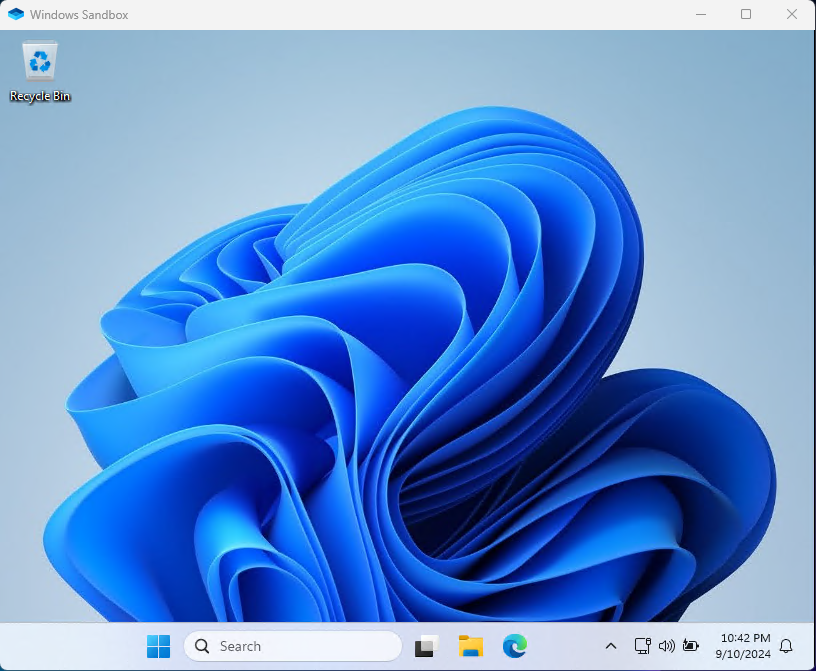
Once you have enabled Windows Sandbox, you can open it by searching for “Windows Sandbox” in the Start menu and clicking on it. You can then install and run applications in the sandboxed environment without affecting your system.
When to use Windows Sandbox?
Windows Sandbox is useful in the following scenarios:
- You received an email with an attachment that you’re not sure about. You can open the attachment in Windows Sandbox to ensure it doesn’t harm your system.
- You want to test a new software application without risking your system’s security.
- You want to visit a website that you’re not sure about. You can open the website in Windows Sandbox to prevent any malicious scripts from affecting your system.
- You want to run an untrusted application without compromising your system’s security.
- Also you can experiment with system settings or configurations without affecting your system.
By using Windows Sandbox, you can create a secure and isolated environment to test software, open files, and perform other tasks without risking your system’s security. This feature is a valuable tool for users who want to protect their system from potential threats and malware.